Applying event filtering to onboarded cloud applications
If you selected API Access as a protection mode, you can select event filtering options for that cloud application after it is onboarded.
After you have onboarded a cloud application with API Access as a protection mode, you can set default filters for allowing or denying all events for users, user groups, domains, or events. These filters can help narrow the focus to specific groups and will require less processing time and less demand on system resources.
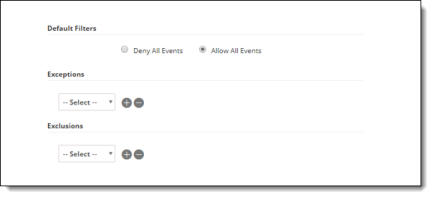
To apply event filtering:
-
Go to Administration > App Management.
-
Select the cloud to which you want to apply event filtering by checking the pencil option.
-
Select filtering options as follows:
-
Default filters – Choose a default filter.
-
Deny All Events – No events are processed.
-
Allow All Events – All events are processed.
-
Exceptions – Select exceptions to the chosen filter for users or user groups. For example, if you want to apply an exception for one group -- the engineering team -- the default filter actions would be applied as follows:
-
For Deny All Events, no events are processed except those for the engineering team.
-
For Allow All Events, all events are processed except those for the engineering team.
-
Exclusions – Select any criteria that should not be included in the exceptions. For example, you might opt to deny (not to process) events for staff in engineering except for managers. Using this example, the default filter exclusions would be applied as follows:
-
For Deny All Events -- No events are processed except for the engineering team. The managers are excluded from this exception, which means that events for managers within the engineering team are not processed.
-
For Allow All Events -- Events are processed except for the engineering team. The managers are excluded from this exception, which means that events for managers within the engineering team are processed.
-
Click Next.